Appearance
3D elevations
EDIT converts a flat, colored elevation (designer drawing, CAD export, or presentation graphic) into a photorealistic 3D architectural rendering—either with landscaping and sky, or on a neutral white background for boards and print.
What you need
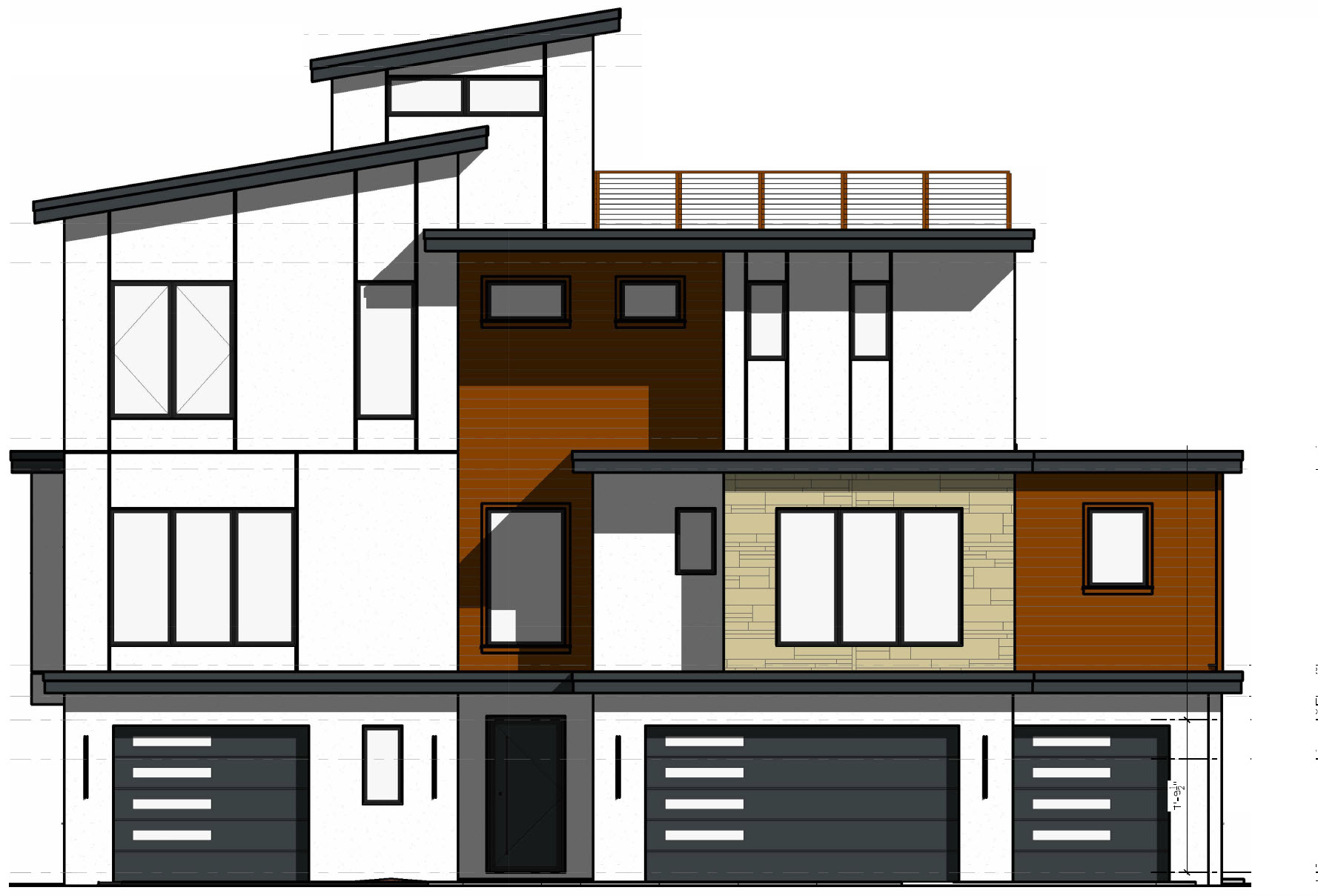
- A front (or primary) elevation with readable massing, roof lines, windows, and materials suggested by color.
- High contrast helps; very faint pencil or gray-on-gray linework is harder for the model to read.
The Cheat Sheet examples use this source drawing:
Two rendering paths
1. Elevation + background (full scene)
Best for client presentations, listings, and curb-appeal studies. The prompt asks for photorealistic materials, color, and landscaping in a daytime scene while retaining all architectural detail from the drawing.
| Original | Result |
|---|---|
| 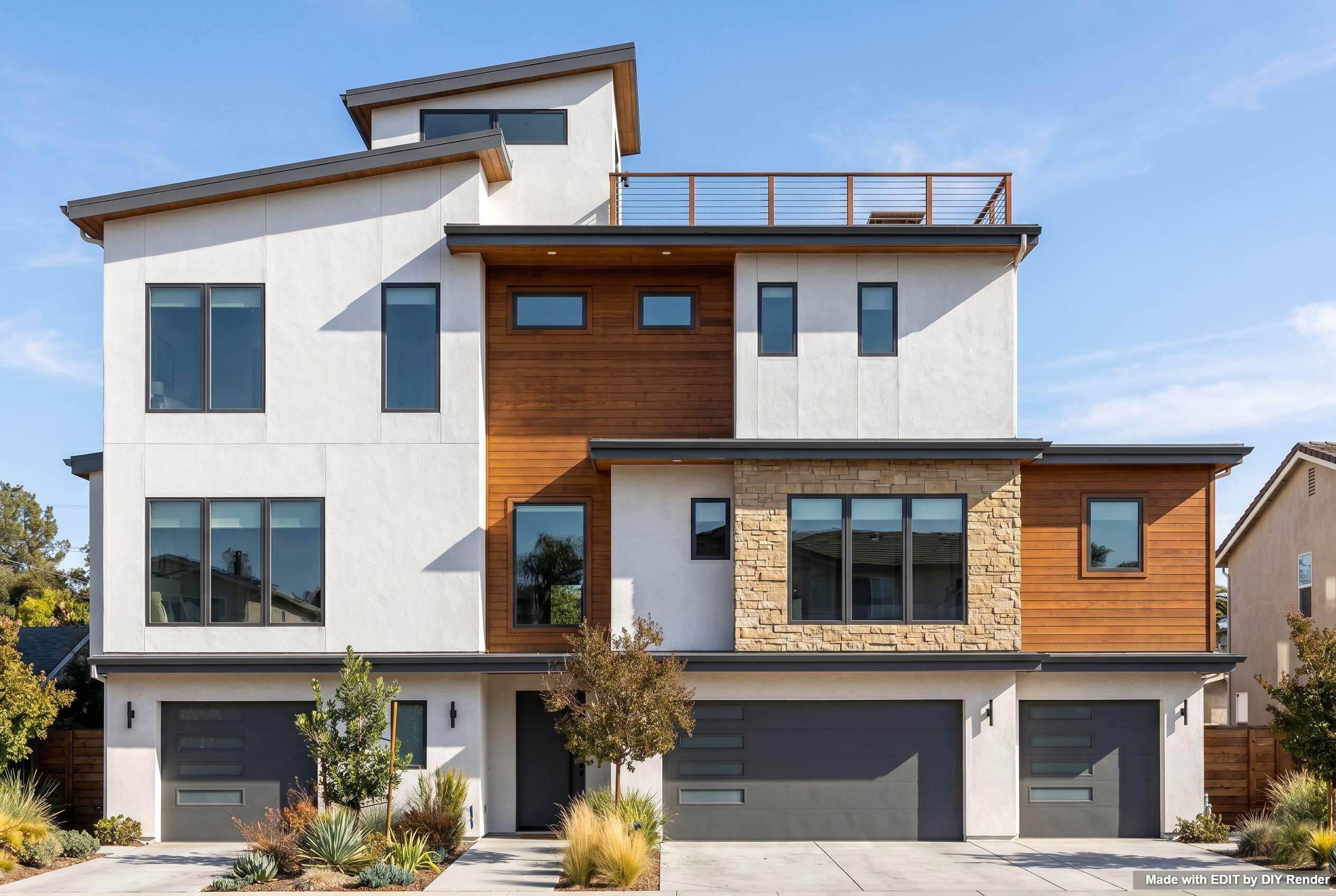 |
Example: 3D Elevation + Background
This example aligns with EDIT’s More → exterior render preset family (PHOTOREALISTIC MODERN style chips). Adding it from the Cheat Sheet can activate the matching modifier chips in the app.
2. Elevation on white (presentation)
Best for design boards, submissions, and overlays where you want no site context—just the building on white.
| Original | Result |
|---|---|
| 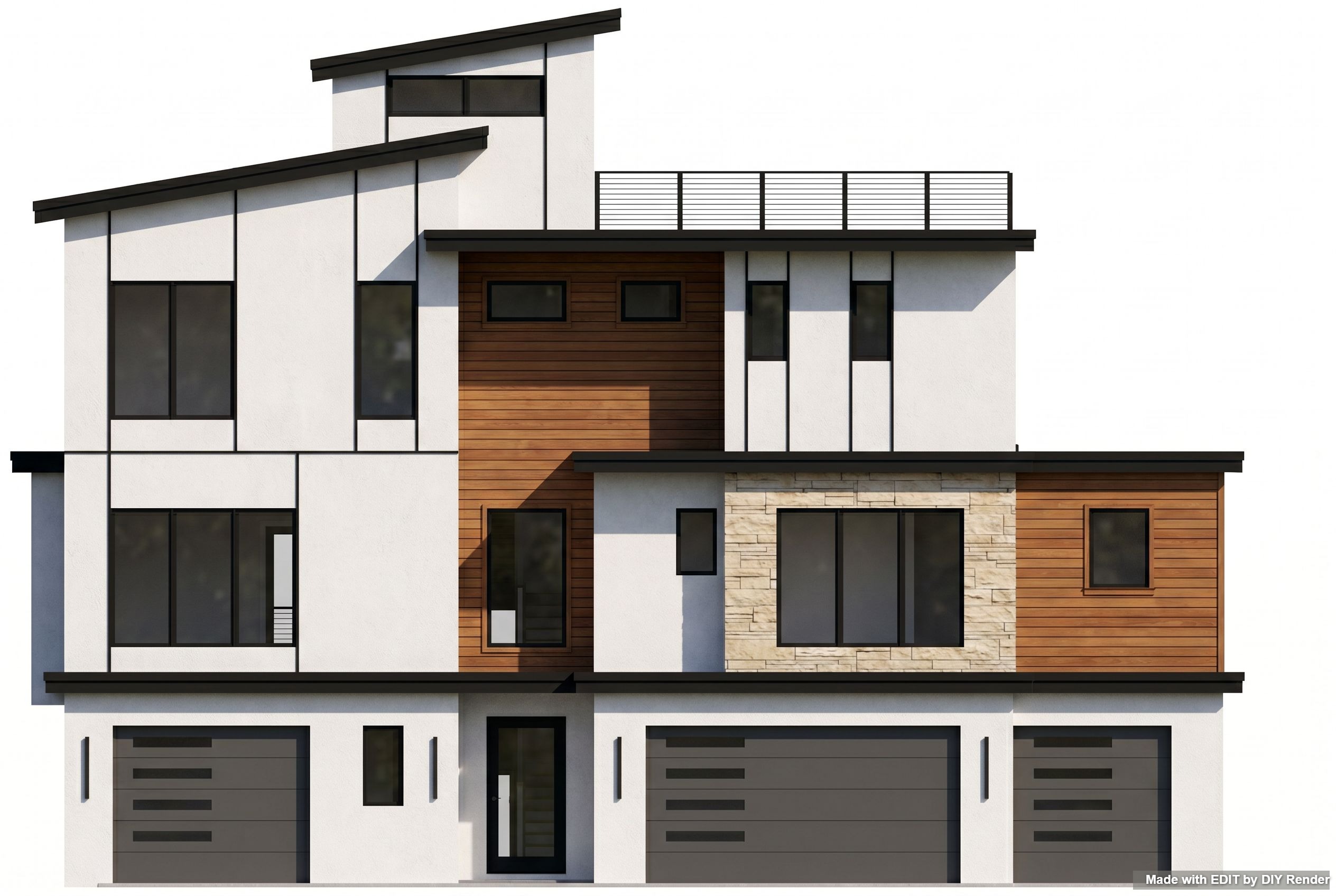 |
Example: 3D Elevation
Workflow
- Upload your colored elevation in EDIT.
- Open the example that matches your deliverable (background vs white).
- Copy the prompt with the clipboard icon next to Prompt on the example page.
- Generate and refine wording if needed (materials, time of day, landscaping density).
- Optional: run exterior material or lighting grids from the Cheat Sheet on a photo render later—see Grids overview.
Related exterior work
After you have a photo-based exterior (not only an elevation drawing), explore:
- Coastal Restyle Entire Scene — whole-scene style pass
- Evening Exterior — twilight atmosphere
- Standing Seam Roof — targeted material change on a photo
For plan-view work (top-down), see Floor plans from 2D.
Tips
- Maintain composition—the elevation’s framing should stay stable; you are upgrading the rendering, not inventing a new camera.
- Start with the white-background prompt when you need a clean plate; add a second pass or the + Background prompt when you need site context.
- Use Original | Result on the example pages and the fullscreen control to check window rhythm, roof edge, and material believability before client delivery.
- Failed generations are not charged—iterate on prompt detail (landscaping, “daytime,” material emphasis) until the massing reads correctly.
Open EDIT to render your elevation.