Appearance
Mood boards & Room Angles
Don’t commit to one look—generate option sheets, then Enhance the winner in EDIT.

Upload your room
Click + New. Upload a clear interior—grids work best when the room geometry is readable.

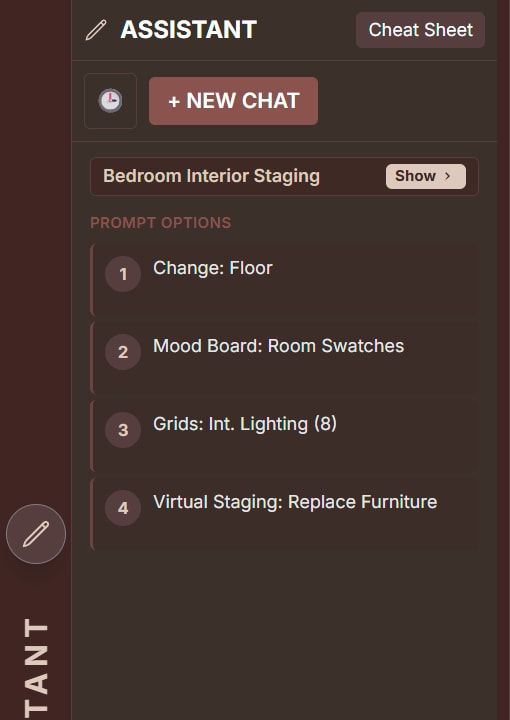
Use the Assistant
Open the Assistant and click a Prompt Option—or run a grid from the Cheat Sheet / Grids menu.
Grids expand into contact sheets. After Step 1, use Enhance Image to promote one panel. See Grids overview.
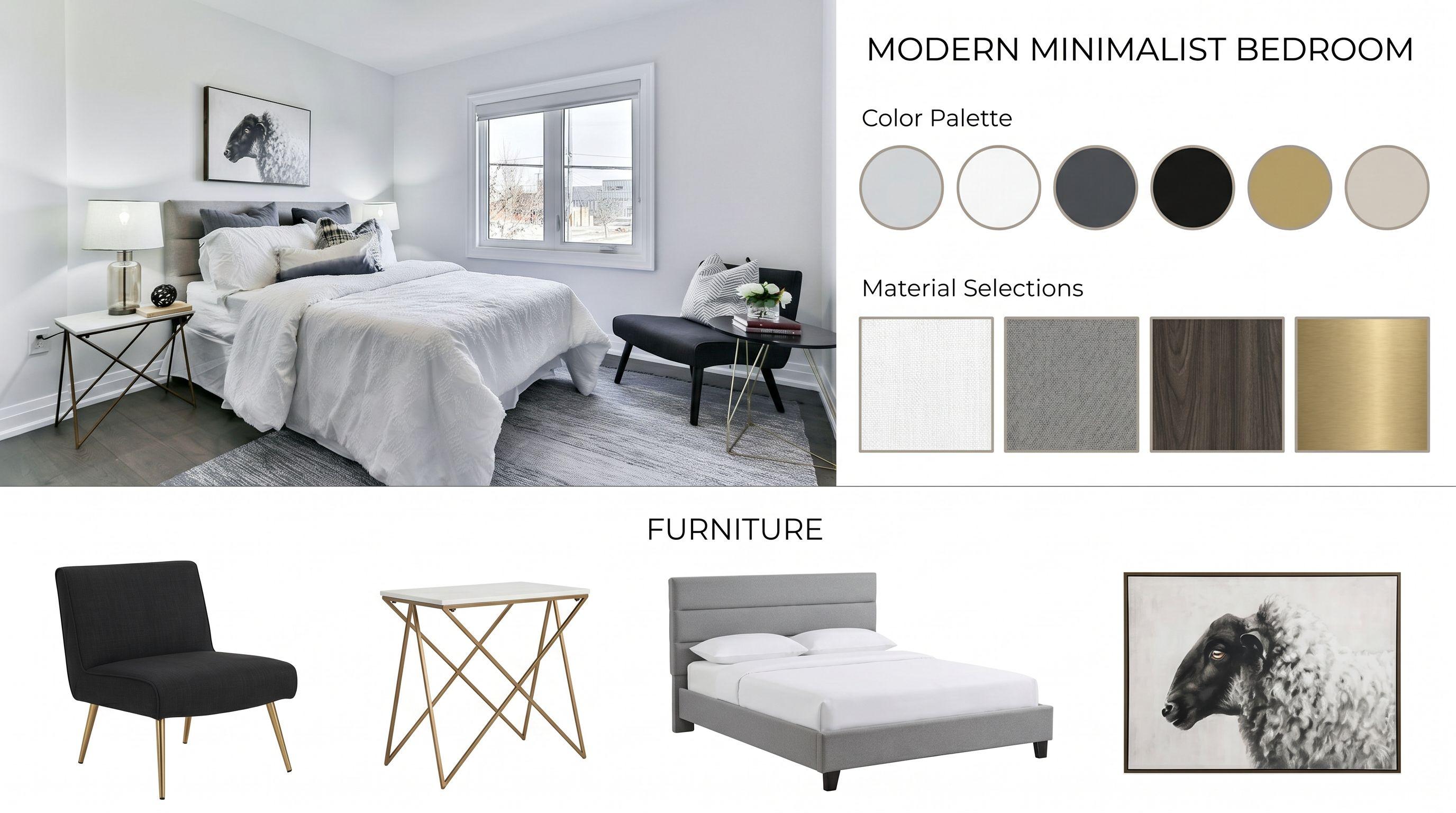
Path 1 — Mood board
One prompt → a sheet of style directions for the same room.
Example: Mood Board
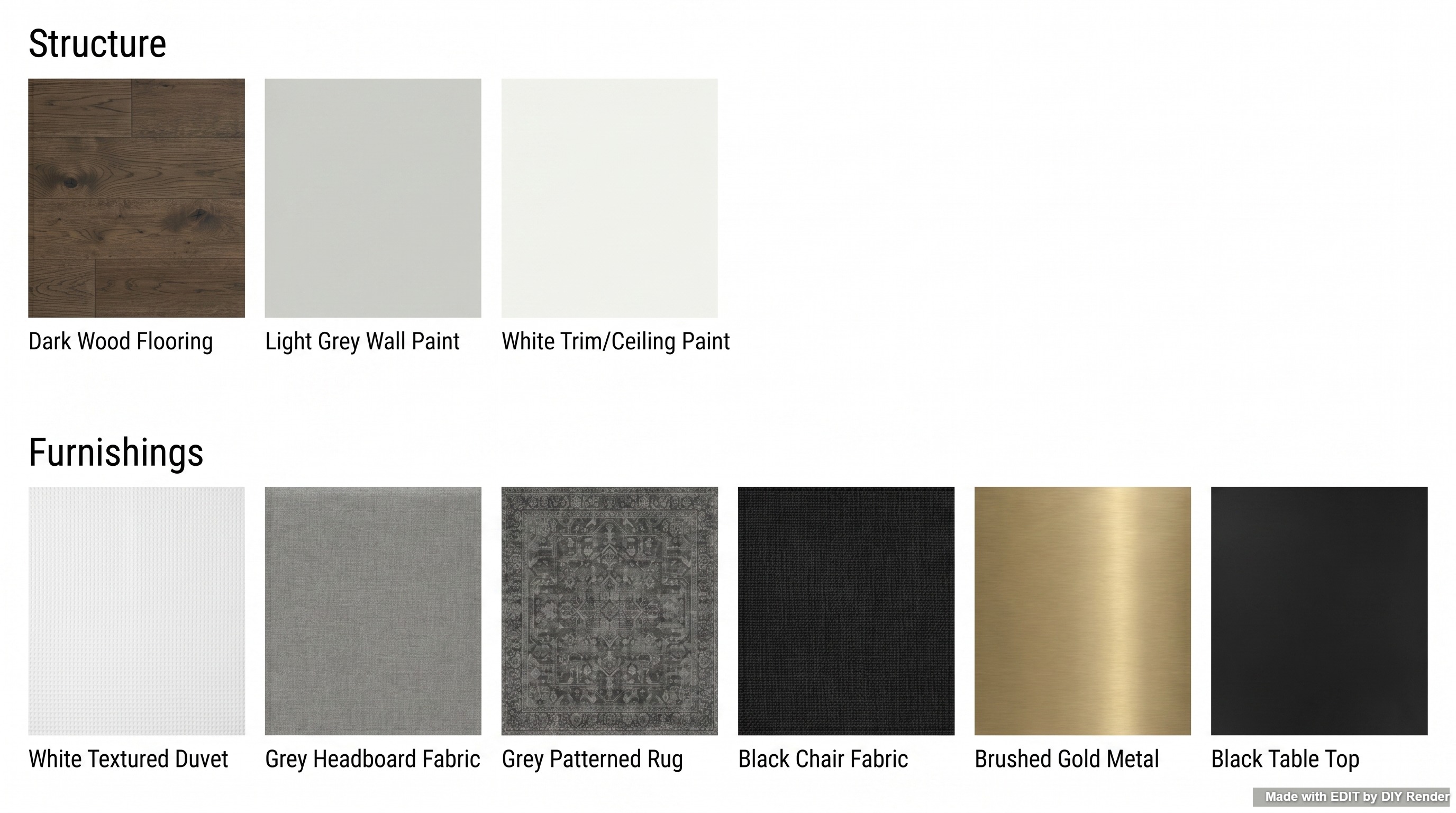
Path 2 — Color & material swatches
Compare finish chips and palettes on the same scene.
Example: Swatches
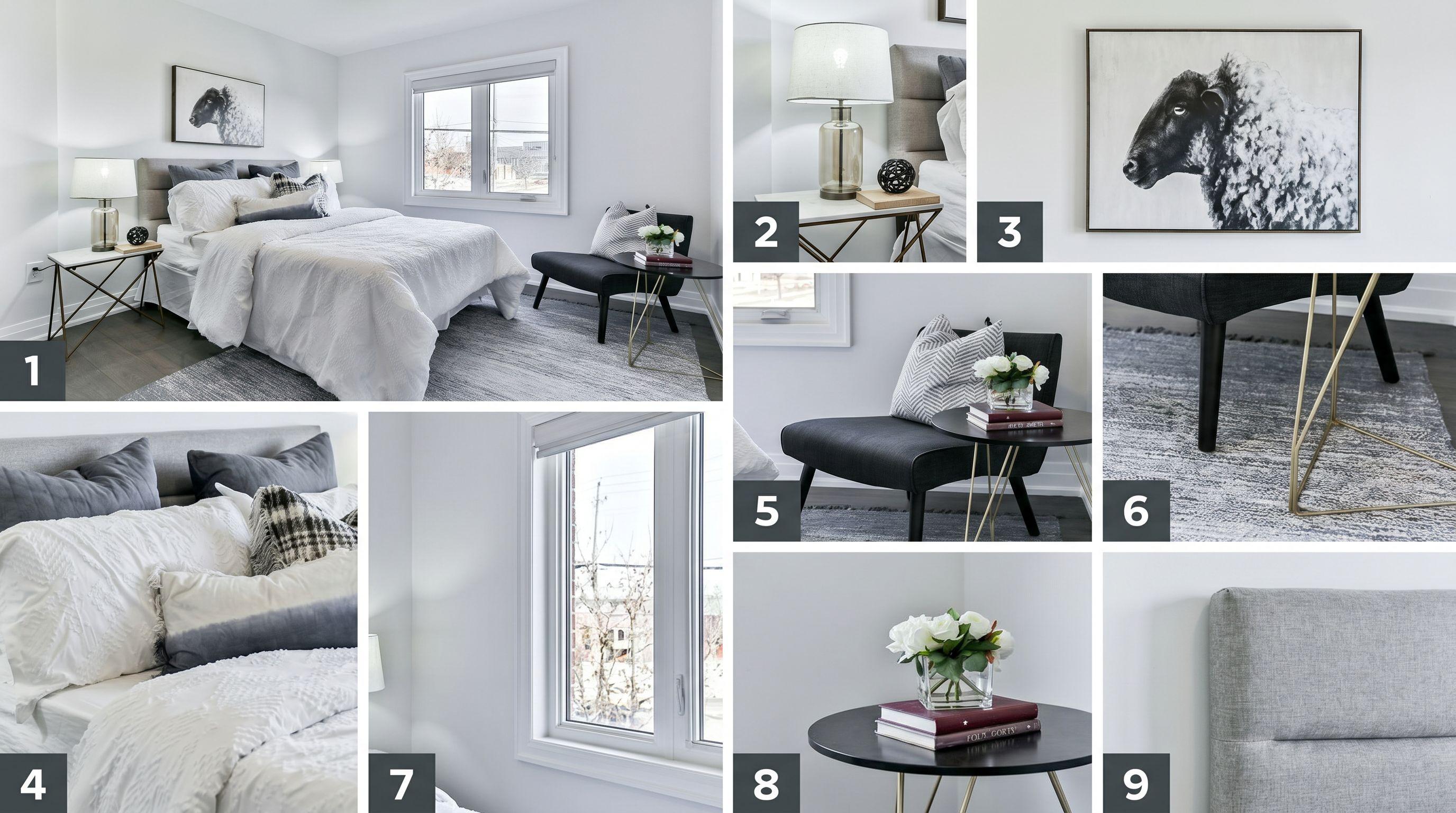
Path 3 — Room angles
Explore alternate camera / detail crops from one interior.
Example: Room Angles
Go Further: Interior or exterior grids
Still exploring? For interiors try Flooring Styles or Cabinet Types. For exteriors try Material Selections or Landscape Styles.
Grids are only available in EDIT. Find them via the Assistant Cheat Sheet, or click Grids above the main prompt area:

More guides
Same app—different job:
- Virtual staging — commit to a furnished look
- Interior Floors, Cabinets & Lights — single finish swaps after you pick a direction
- 3D elevations — explore exteriors from a drawing
Browse every how-to with previews: All guides.
Explore options before you decide.
Try EDIT free — no credit card.