Appearance
Virtual staging
Add photorealistic furniture and lighting to an interior photo—same room, new look.

Upload your interior
Click + New. Upload a clear room photo—empty, builder-grade, or lightly furnished works best.

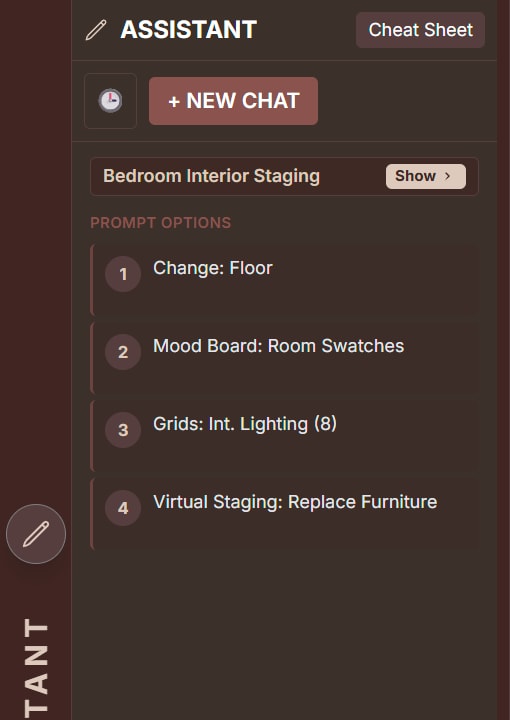
Use the Assistant
Open the Assistant and click a Prompt Option—or paste a style prompt below.
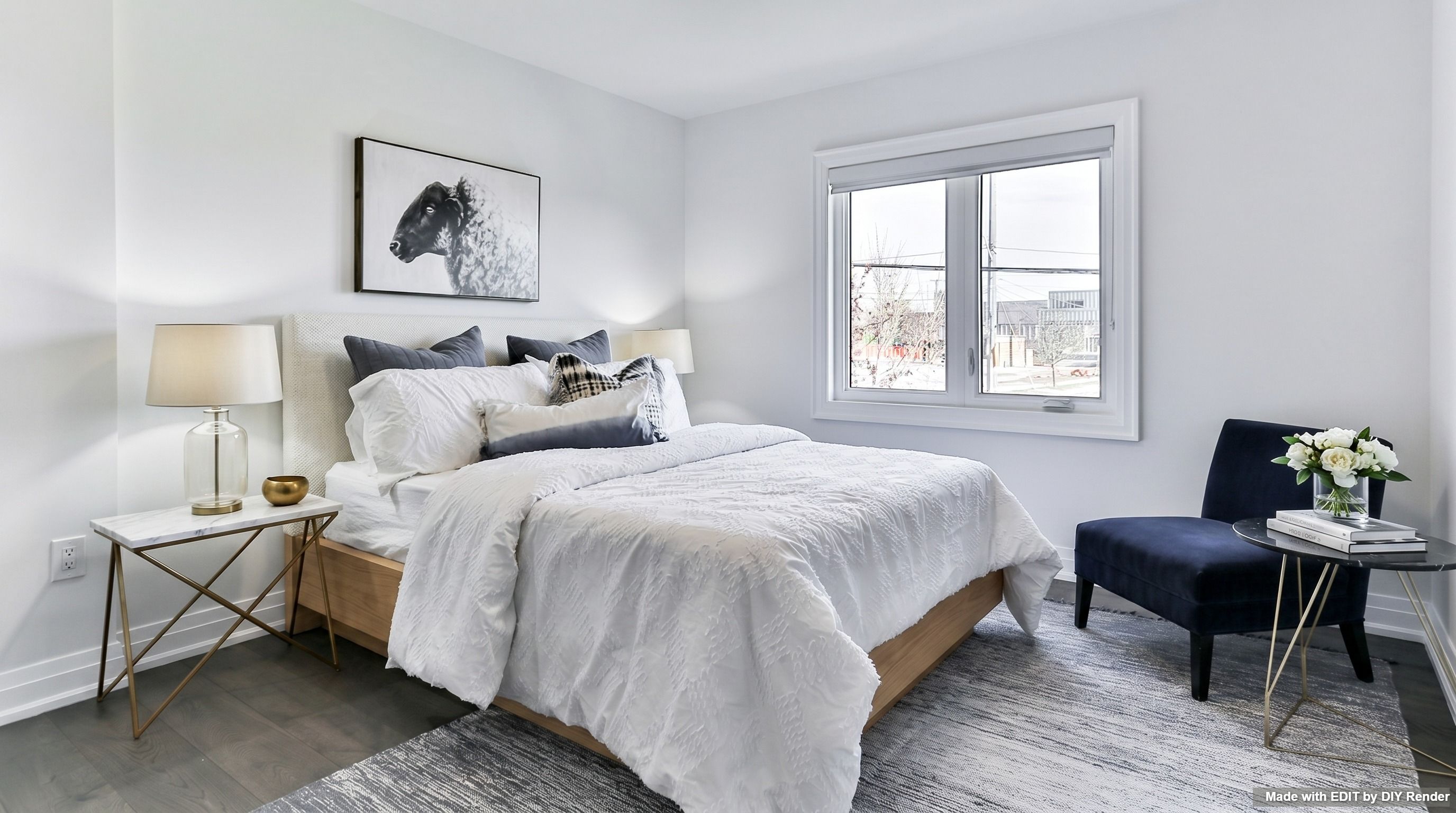
Bedroom — minimalist style
Style + room tokens set the look. Keep the same crop and camera.
Example: Minimalist Williams Sonoma
Prompt
MINIMALIST WILLIAMS-SONOMA: Virtually stage with photorealistic BEDROOM furniture. The furniture, lighting, and shadows must be seamlessly integrated. Maintain composition.Office — RH Modern
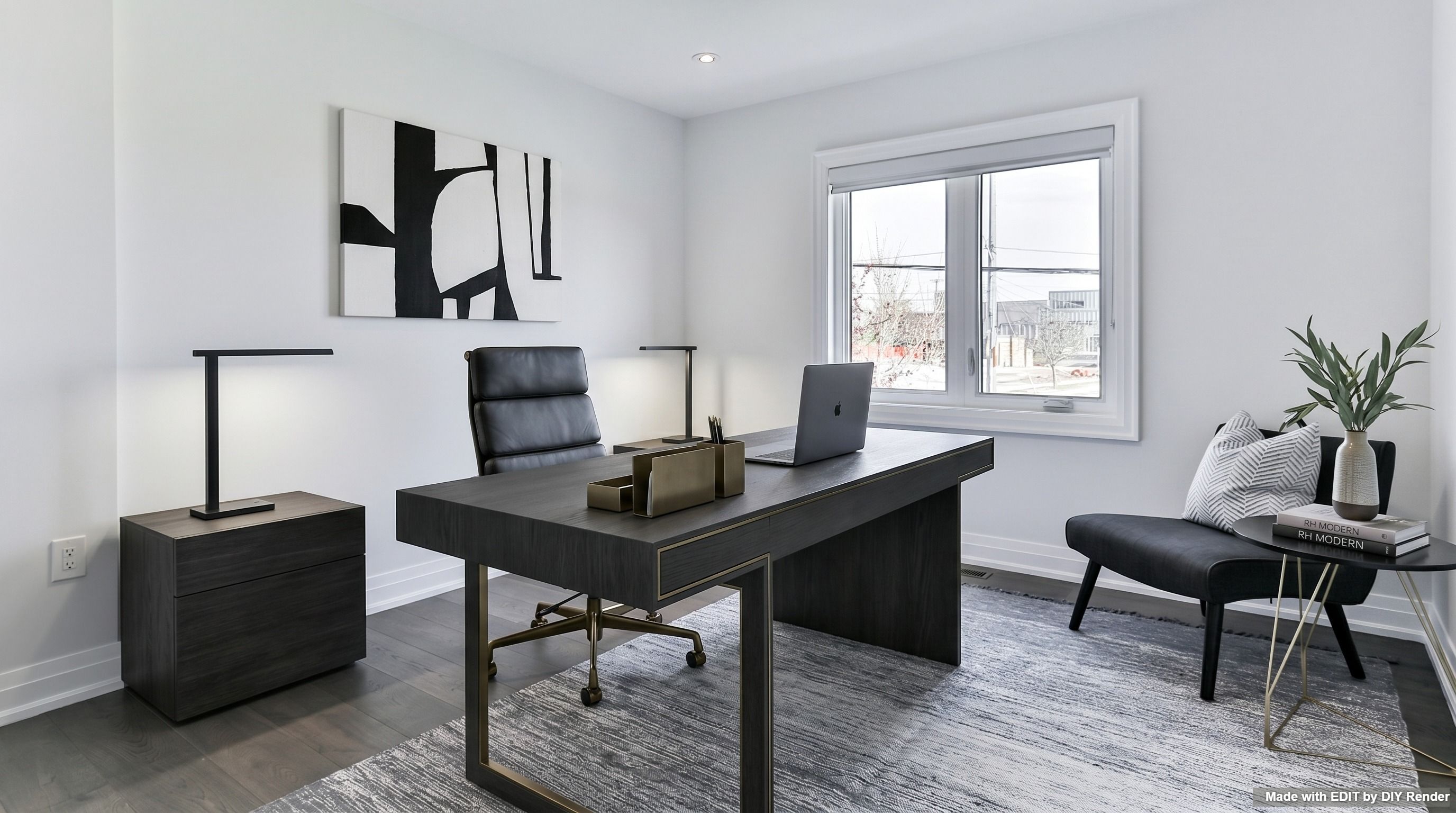
Same pattern with an office style token and room label.
Example: Virtual Stage RH Modern Office
Prompt
RH MODERN: Virtually stage with photorealistic OFFICE furniture. The furniture, lighting, and shadows must be seamlessly integrated. Maintain composition.Clear the room first
To stage from scratch, remove existing furniture, then run a staging prompt on the empty result.
Example: Remove Furniture
Match the room type in the prompt to what’s in the image.
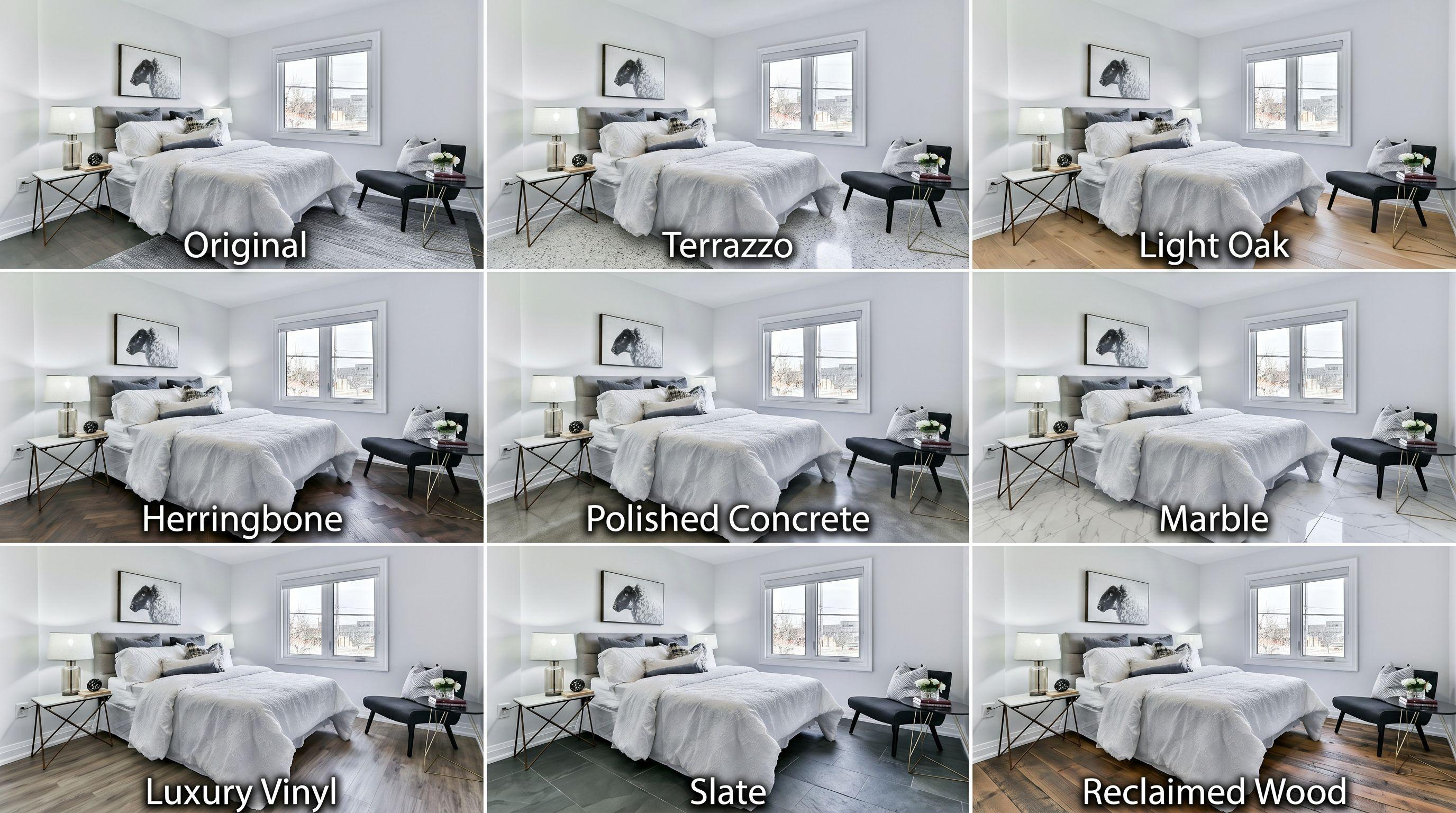
Go Further: Compare flooring styles
Run a Flooring Styles grid on your staged room to compare floor options—then Enhance the panel you like.
Grids are only available in EDIT. Find them via the Assistant Cheat Sheet, or click Grids above the main prompt area:

Example: Flooring Styles
More guides
Same app—different job:
- Adding objects — hang artwork or place objects at real size
- Interior Floors, Cabinets & Lights — swap floors, cabinets, lighting
- Mood boards & Room Angles — option sheets before you commit
Browse every how-to with previews: All guides.
Stage your next interior in minutes.
Try EDIT free — no credit card.